8PWD
8PWDUser guide
Everything 8PWD does, in roughly the order you will meet it. Bold names are labels you see on screen; monospace is something you would type. Where iPhone, iPad and Mac differ, the section says so.
Setting it up
First launch is a few short screens and one button. On iPhone the very first screen asks which interface you want: Standard is preselected; tap Easy Mode (big text, fewer steps — see the next section) to switch, then Continue. Both interfaces then see the same three screens. The app follows your device language; the globe in the top corner switches to another of the thirteen, and you can change it later under Me › Language. Legal texts in languages other than English are translations, and the English version prevails.
Agree and continue. The terms and the privacy policy are linked right above the button. The moment you tap it, the vault is created and encrypted with a random key generated on this device and stored in its Keychain. There is no master password to invent on day one.
Unlocking. The vault opens as soon as your device is unlocked — your device's own lock is the protection. Want a prompt every time? Turn on Face ID / Touch ID under Me › Security; it is off by default. Auto-lock (immediate, 1, 5, 15 or 30 minutes, 1, 2, 4 or 8 hours) decides how long the app may sit in the background before asking again.
Anti-theft encryption is the second lock, and it is yours to turn on: Me › Anti-theft encryption. Choose a master password of at least 6 characters (600,000 rounds of PBKDF2 are what make it hard to attack) and the app generates a 12-word recovery phrase — write it down, print it or save it as a PDF from the same screen, and it checks one word back. From then on the vault opens only with the password or, if you turned it on, Face ID / Touch ID; a stolen phone with a known passcode still cannot open it. It can be turned off again with the password.
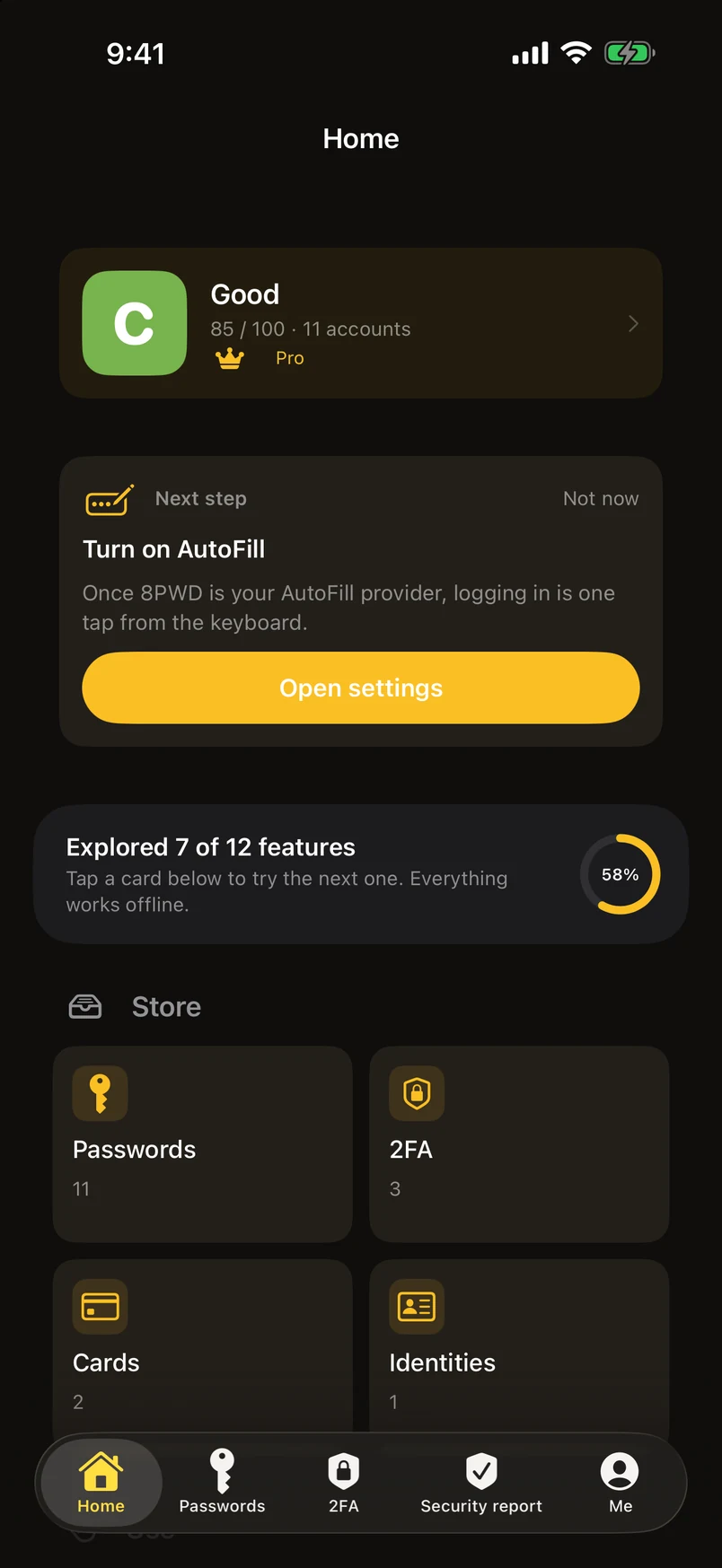
After the first screens you land on the Home tab (the sidebar on iPad and Mac): your security grade, one “next step” card, and every feature as a card — see the next section. 8PWD 2026 Pro is shown once, after your first real action (the first saved password, import or 2FA code), never before. Getting Started under Me lists the five things worth doing first — AutoFill, an import, a master password, a first two-factor code, a first backup — and ticks them off as you go. Anti-theft encryption is listed there too, as optional.
The Home tab
Home is the first tab since 3.1 and replaces the two side drawers. At the top, your security grade with the number of accounts, and a Next step card that recommends exactly one thing — import, turn on AutoFill, add a two-factor code to the account that supports it, create a passkey, change a weak password, make a backup, print the Emergency Kit — and changes as you do it. Below, how many of the twelve features you have tried, every feature as a card in three rows (Store · Use · Protect), and your recent accounts. Tapping a card opens that feature; on the free plan, your usage out of ten is shown here too.
The Passwords tab keeps a row of module shortcuts (2FA, Wi-Fi, cards, identities, passkeys), so nothing that lived in the drawers is further than one tap away. Each module page starts with a short “what is this · how to” strip; close it and it stays closed, or bring all of them back under Me › Getting Started › Show all tips again.
Security check-up (on Home and under Me › Security report) re-scans everything in one tap — leaks, weak, reused, out of date, missing two-step — compares with the last run, keeps a history and awards eight badges. Share the result as an image; it never includes account names. How the score is computed.
Easy Mode
Easy Mode is the same vault with a different face, for anyone who finds phones hard: large text, large input fields, and only the things that matter. Choose it on the first screen, or switch under Me › Appearance › Easy Mode / Standard; it is iPhone-only (iPad and Mac always use Standard).
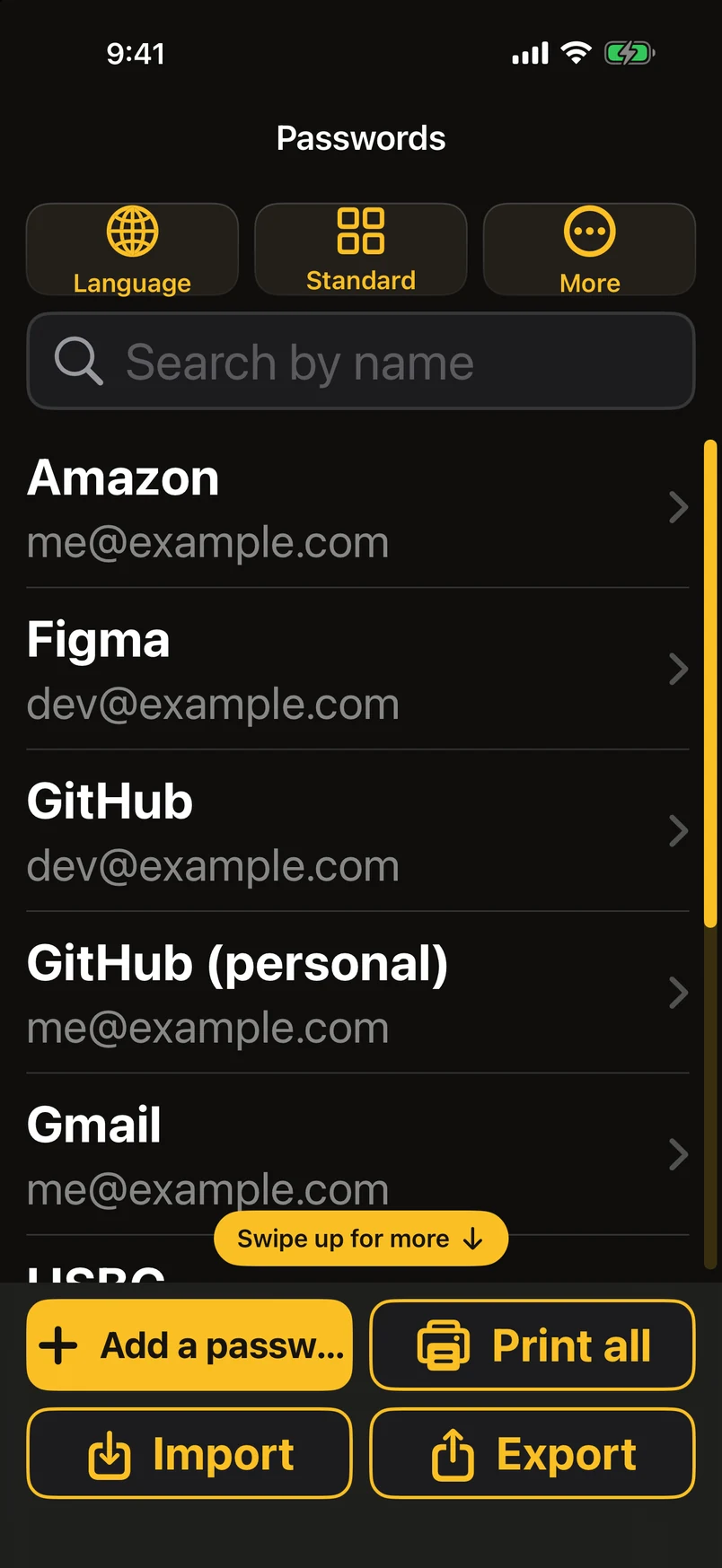
Under the title sit three equal buttons — Language, Standard, More — because switching language and switching back to Standard are the two things people need most often. At the bottom, four buttons of the same size in two rows: Add password, Print all, Import, Export. Import offers two choices, from Apple Passwords on this iPhone or from an .8pwd backup file a family member exported; every other format is under More › Advanced features. The list has a thick scroll bar that never fades and a “Swipe up for more” hint, so nobody wonders whether there is more below.
A password in Easy Mode is one screen: name, username, password, website, note — and, below them, Other fields: any custom field from Standard shows here too, and you can add one, rename it or remove it. Tap the pencil next to a label to rename any field. Long values such as web addresses wrap onto several lines. Under the password: Hide / Show, Copy, Generate, and Zoom — the password at 40 points, monospaced, every four characters in alternating color so you never lose your place, the characters themselves untouched. Save takes you back to the list and highlights the entry; Print this one and Delete (two steps) are big buttons at the bottom.
More holds text size, theme, anti-theft encryption, Pro, help — and Advanced features, a page of its own with the complete Standard settings grouped by section, so nothing is ever out of reach. The Pro page in Easy Mode is the same single plans page as Standard, in large type, with a visible scroll bar.
Text size in Easy Mode starts one step larger than Standard's default and has its own range under More › Text size; the smallest step is still large. For small text, switch to Standard.
Turn on AutoFill first
Do this before anything else. With AutoFill on, signing in is: tap the field, Face ID, done. Without it: switch to 8PWD, unlock, search, open, copy, switch back, paste. Same app, two completely different products.
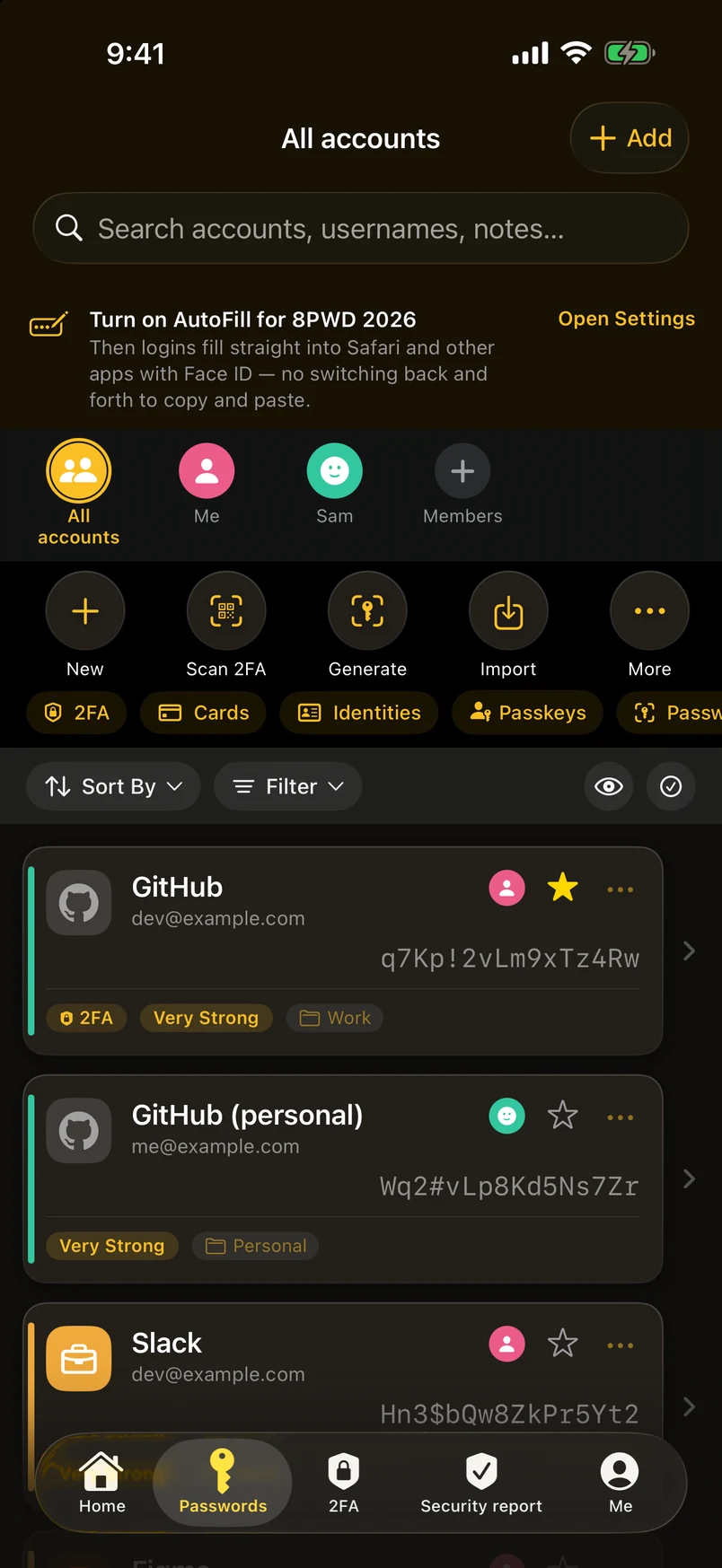
The switch is buried, so 8PWD shows a banner at the top of the password list while it is off — tap it and you land on the right settings page. By hand it is Settings › General › AutoFill & Passwords on iPhone and iPad, and System Settings › General › AutoFill & Passwords on Mac, then switch on 8PWD. On Mac the extension fills into Safari and into apps that use the system password field.
Suggestions need a URL on the entry: that is how the system matches an entry to a site. When several accounts fit one site you choose, and the pick is remembered for that site. The extension fills passwords, passkeys, two-factor codes, card details and identity fields — one value at a time, into the field you tapped — and it never hands your vault to the app you are filling into. After a successful Face ID or Touch ID it skips the check for 10 minutes (adjustable under Me › Security); meanwhile the list is visible behind a translucent lock.
The password list
Each row shows the name, the username, the password, a strength label, a two-factor badge when a code is linked, and the folder it sits in. Search matches the account name and both the label and the value of every field, so an email address, a URL or a word from your notes all find it. It ignores accents and full-width characters, and Chinese names can be typed as Pinyin — zfb finds 支付寶.
Sort offers manual order, recently used, name A→Z and Z→A, date updated and date created. Recently used means you copied its password or opened it — not when you last edited it. Filter narrows to favourites, weak passwords, entries with no password, or empty entries.
Swipe a row right to copy its password straight away; a shorter swipe also offers favourite. Swipe left for move-to-folder and delete. The tick button turns on multi-select for moving or deleting several at once, which asks for confirmation and tells you how many. On Mac the list is a table: click a column header to sort, select several rows with ⌘-click, drag them onto a folder in the sidebar, and use ⌘C to copy the selected password.
The eye button masks names, usernames and passwords together — one switch, for when someone is beside you. It is deliberately not remembered: it resets when you leave, so you never think you are hidden when you are not.
Deleted entries go to the Trash and can be restored. Single deletes are immediate, because the Trash is already the safety net.
Folders, tags and smart groups
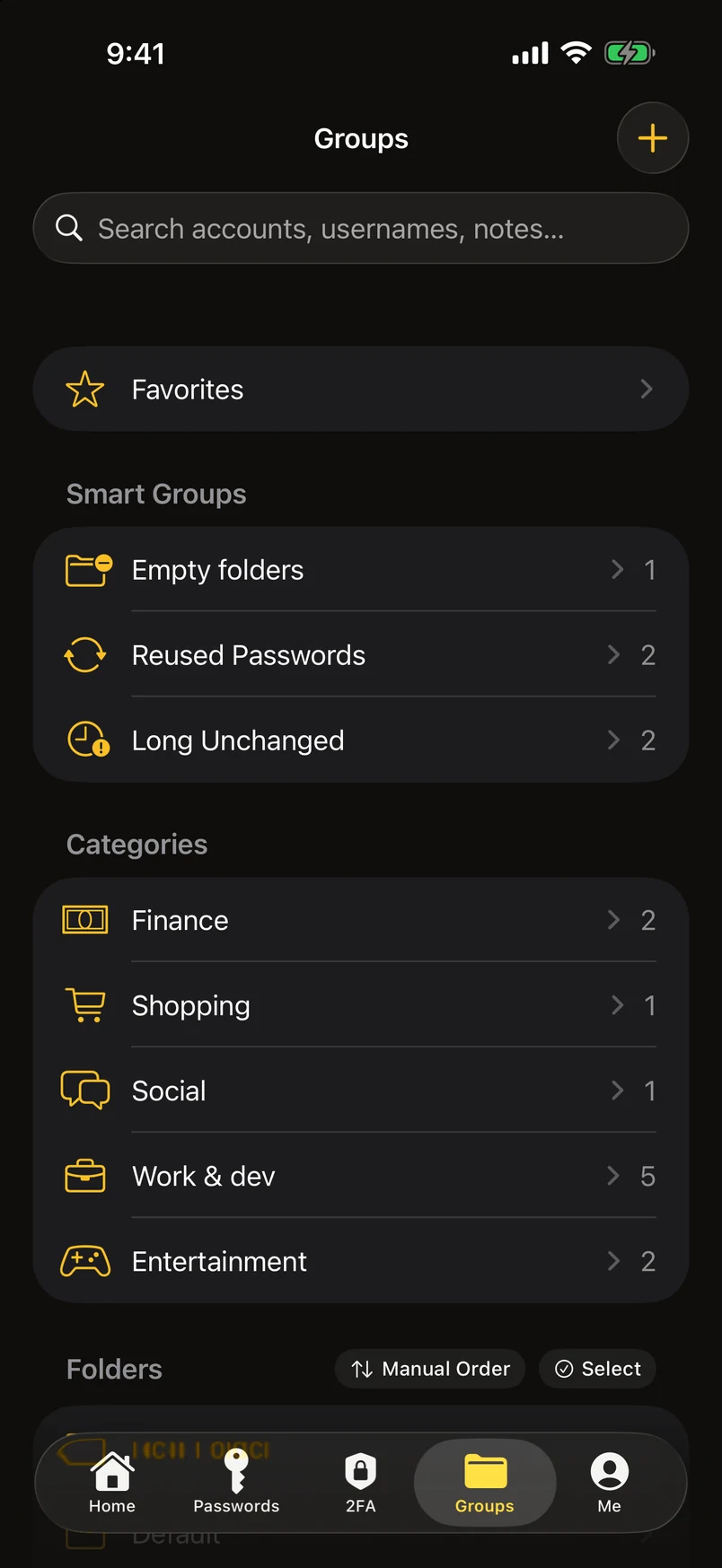
The Groups tab holds everything structural. Tap New folder at the top of the folder list, name it, and it appears first. Long-press any folder for everything you can do to it: new subfolder, rename, move, multi-select, delete. Inside a folder, the … button adds a subfolder or deletes the folder you are in, taking you back up when it does. On iPad and Mac the folder tree lives in the sidebar.
Smart groups are live queries, not stored folders, and they appear only when they contain something. Weak passwords catches short or simple ones and anything on the list of most-guessed passwords. Reused is the same password on more than one account. Long unchanged is over 180 days without an update. Empty accounts have nothing filled in. Exact duplicates are entries identical in every way except the internal identifier.
Open Exact duplicates and tap keep one of each. It reports how many sets it found and how many entries it will remove before you confirm, keeps the favourite one (or the oldest if none is starred), and sends the rest to the Trash — so a mistake is recoverable.
Two-factor codes
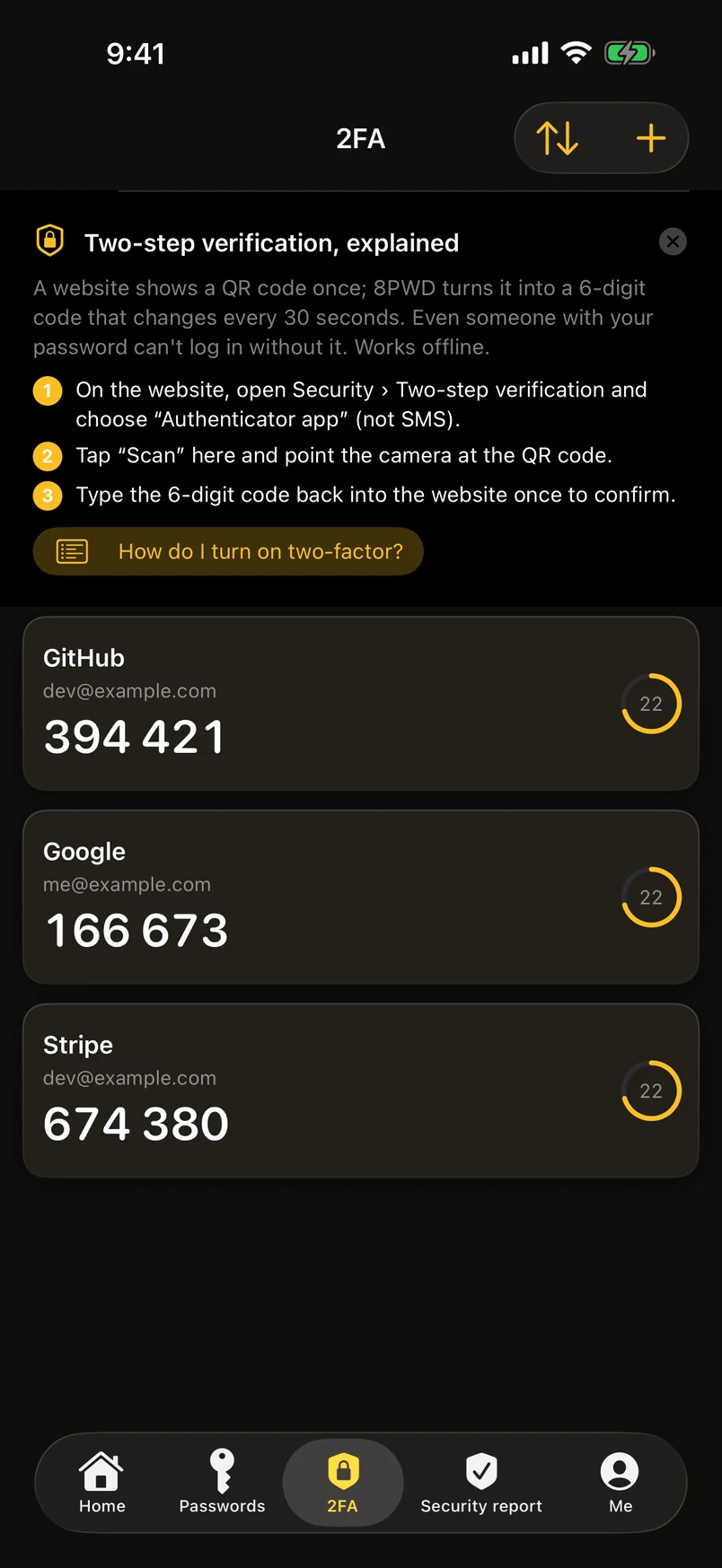
8PWD generates standard TOTP codes (RFC 6238, built on RFC 4226) on the device. The defaults are SHA-1, six digits and a 30-second period, which is what almost every site uses; SHA-256 and SHA-512, six to eight digits, and periods from 15 to 60 seconds are all supported for the ones that don't.
Add a code by scanning the QR code a site shows you, importing a screenshot from Photos, pasting an otpauth:// link, or typing the secret by hand. Moving from Google Authenticator: use its Export accounts screen and scan the QR code it produces — 8PWD reads the whole batch at once. On Mac, drop the QR image onto the window or pick it from a file.
Link a code to an account and it appears on that row in the password list, and counts towards the two-factor part of the security score. You can also export a single code back out as a QR if you want it in another authenticator.
The widget. Pin codes from the 2FA tab (long-press › Pin to widget) and add the 8PWD widget to the Home Screen or Lock Screen. In privacy mode it shows only the names; tapping opens the app on that code. What the widget stores is a small encrypted snapshot, never your vault.
How do I turn it on for a given site? Under the 2FA tab, How do I turn on two-factor? lists Google, Microsoft, Microsoft 365, Amazon, Facebook, Instagram, X, GitHub, Discord, PayPal, Dropbox, LinkedIn, Reddit and Apple with the exact menu path and the catches, and opens that site's security page in Safari. The same list is on this site. Since 3.0 the codes also show in the Dynamic Island while they count down.
Passkeys
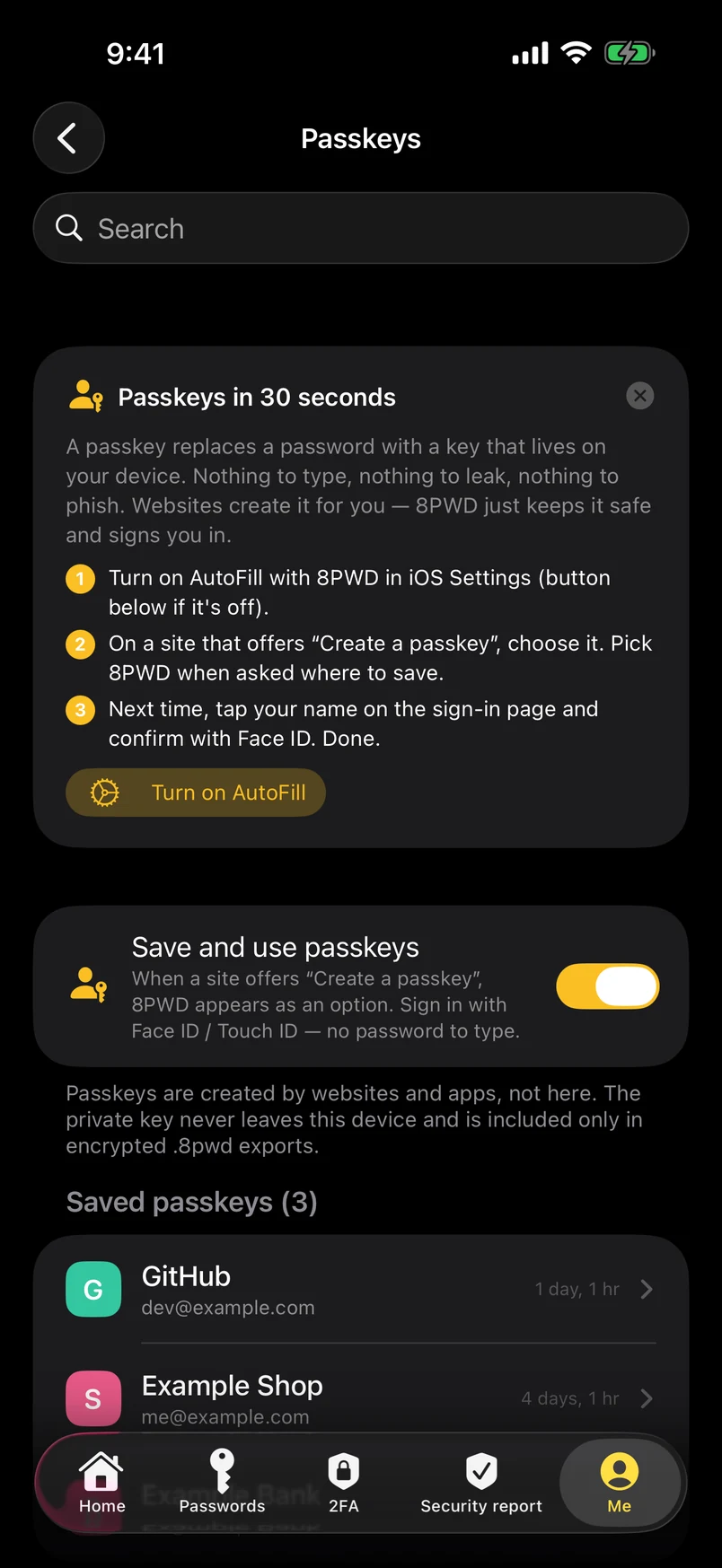
A passkey replaces a password with a key pair: the website keeps the public key, the private key stays in 8PWD on this device. Signing in proves you hold the private key — nothing secret is ever sent, so there is nothing to phish or leak. Passkeys, in plain language explains it in three steps.
Turn on AutoFill with 8PWD first (iOS Settings › General › AutoFill & Passwords). Then, on a site or in an app that offers Create a passkey, choose it and pick 8PWD when the system asks where to save; confirm with Face ID or Touch ID. Next time, tap your name on the sign-in page and confirm — done. The Passkeys module (Me › Main features) lists what you have saved, shows which of your own sites already support passkeys (from an offline list of 400) with a Go button to their setup page, and holds the switch that takes 8PWD out of passkey prompts if you prefer passwords only.
Only on this device — back it up. 8PWD never syncs. A passkey created here works only here until you move it: export an encrypted .8pwd backup — passkeys are never written into plain backups, and ticking “include passkeys” requires an export password — and import it on the other device, or use Move or merge to another device by AirDrop. Deleting a passkey in 8PWD does not remove it from the website; turn it off in your account settings there too.
The security score
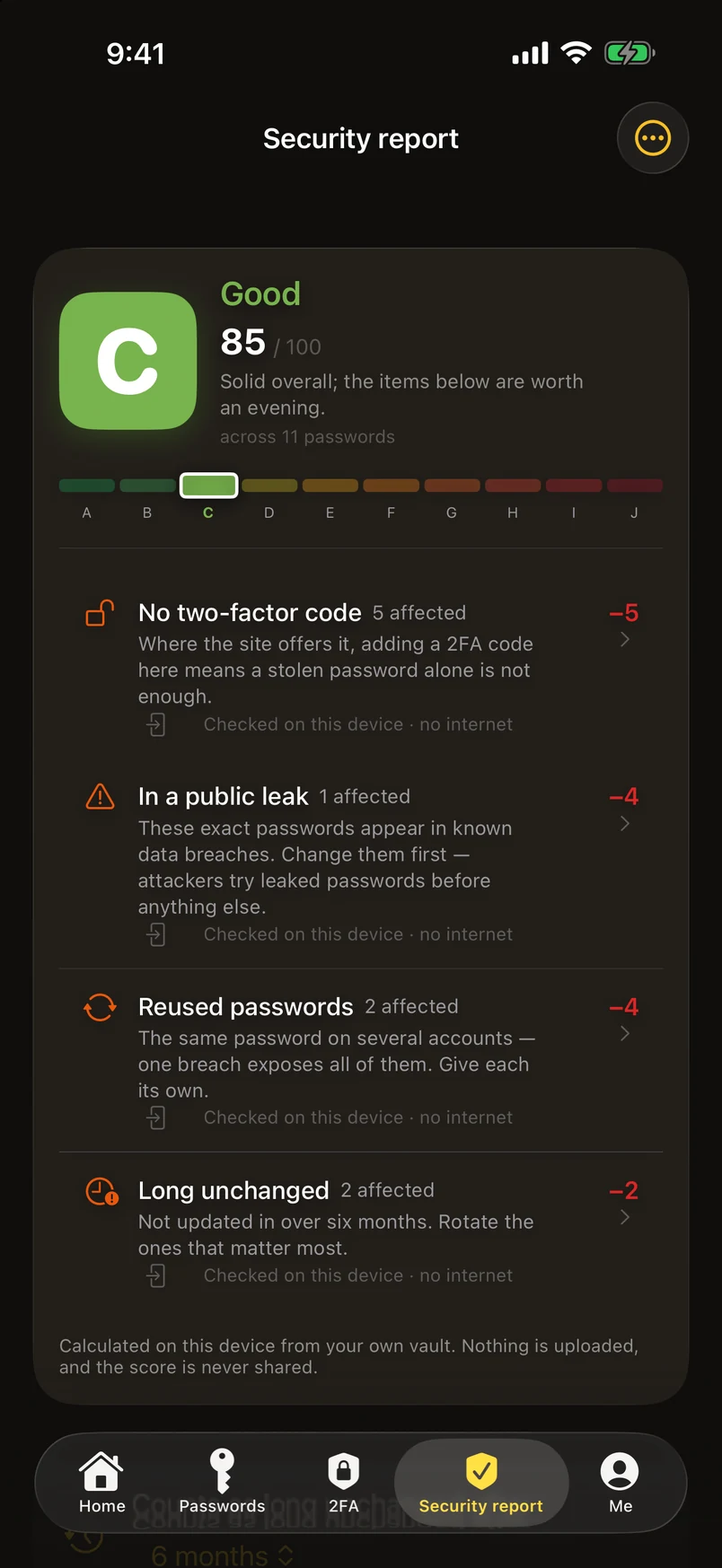
The Security tab scores your vault from 0 to 100, entirely on this device. Nothing is uploaded and the score is never shared.
Five things cost points, and the weights add up to exactly 100: in a public leak up to 40 — the password appears in the Have I Been Pwned list of a million most-leaked passwords bundled inside the app — weak passwords up to 20, reused passwords up to 20, long unchanged up to 10, and no two-factor code up to 10, counted only for websites that actually support it. Accounts you sign in to with a passkey are never penalised. Each is scored in proportion to how many of your entries it affects — so fixing a few always moves the number. Every item says “Checked on this device · no internet”; the grades A–J keep the thresholds they always had, so a number may move when you update. The full method.
Every deduction is listed with what it cost and how many entries it hit, and tapping one jumps to those entries. Accounts with no password at all are left out of the calculation rather than scored as zero.
The number is then expressed as a grade from A to J: 95 and above is A, then one grade every 5 points down to F (70), then G (60), H (50), I (35) and J. It is a password-security grade, not a credit rating — it only borrows the readability.
Ignoring. Inside a smart group (weak, reused, long unchanged, no two-factor) swipe left on an account to ignore that issue for that account: the points come back immediately and the entry leaves the group. Everything ignored is listed under Ignored issues, where any of it can be restored.
The trend line. Each unlock records the month’s score (the last one in a month wins), kept for 36 months. It sits under the grade card, so you can see whether the last few months went up or down. A monthly local notification can summarise it for you — computed on device, off by default.
The password health report (PDF). The document icon at the top of the Security report tab, the button under the trend, or Me › Reports & printing — each generates a four-page report: grade and key figures, deductions and trend, the accounts to work on, and the method. It contains account names and aggregate numbers only — never a password — and follows the current view (all accounts or one member).
The sign-in log. Me › Security › Sign-in log records the time, method and device type of every unlock, including failed attempts. Local only, no permissions needed, the latest 500 entries or 12 months.
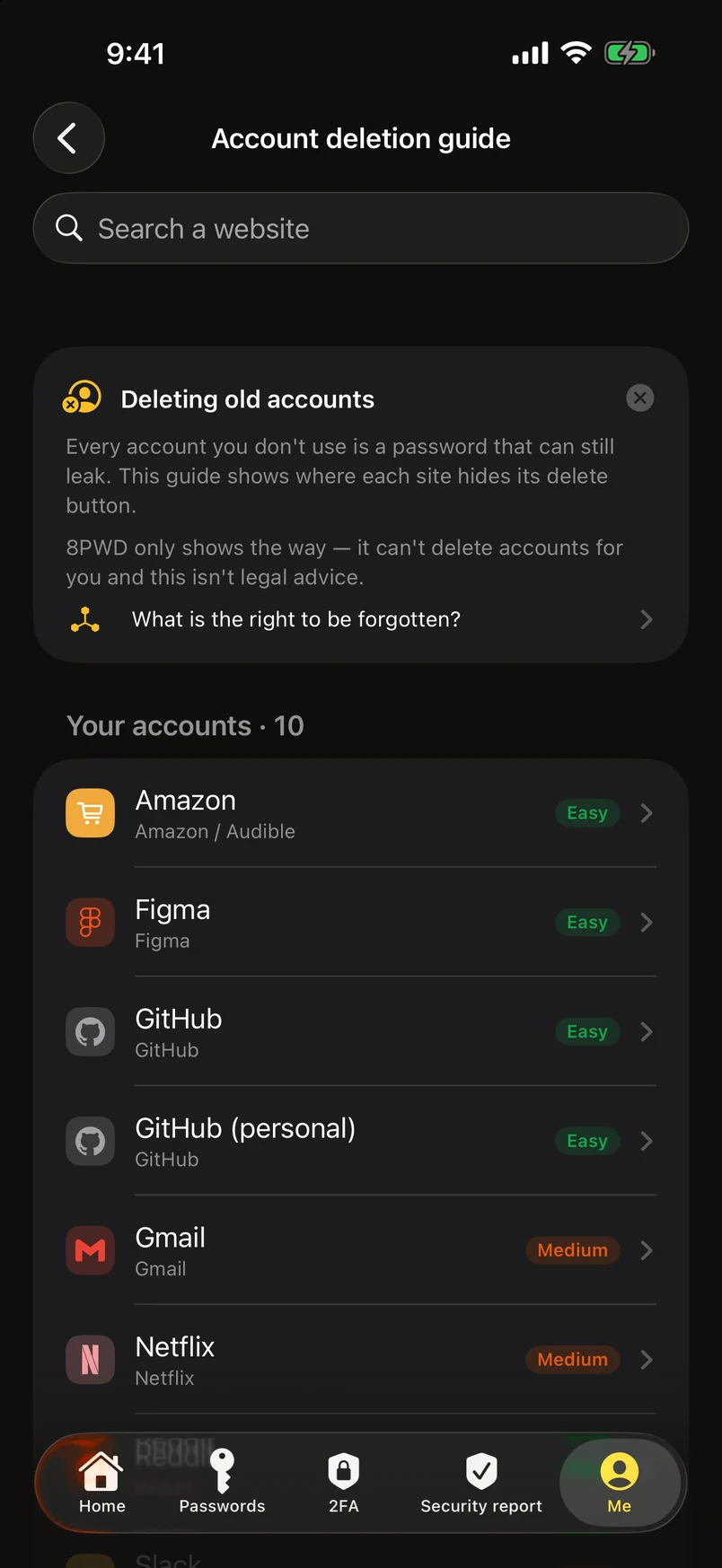
Deleting old accounts
Every account you don't use is a password that can still leak. The Account deletion guide (Me › Security & backup, and on Home) bundles the JustDeleteMe directory — 2,100+ websites with a difficulty rating (easy, medium, hard, limited, impossible), instructions translated into all thirteen languages, a one-tap link to the site's own deletion page and, where the site only answers by email, a ready-made request letter (GDPR, CCPA or general) copied with your name and username filled in. Search any site, or start from Your accounts: the sites in your vault that appear in the directory.
Each account's detail page shows How to delete this account when its site is known. Once the site confirms, move the record to the Trash. 8PWD only shows the way — it cannot delete accounts for you, and nothing here is legal advice. The same guide, on this site · What is the right to be forgotten?.
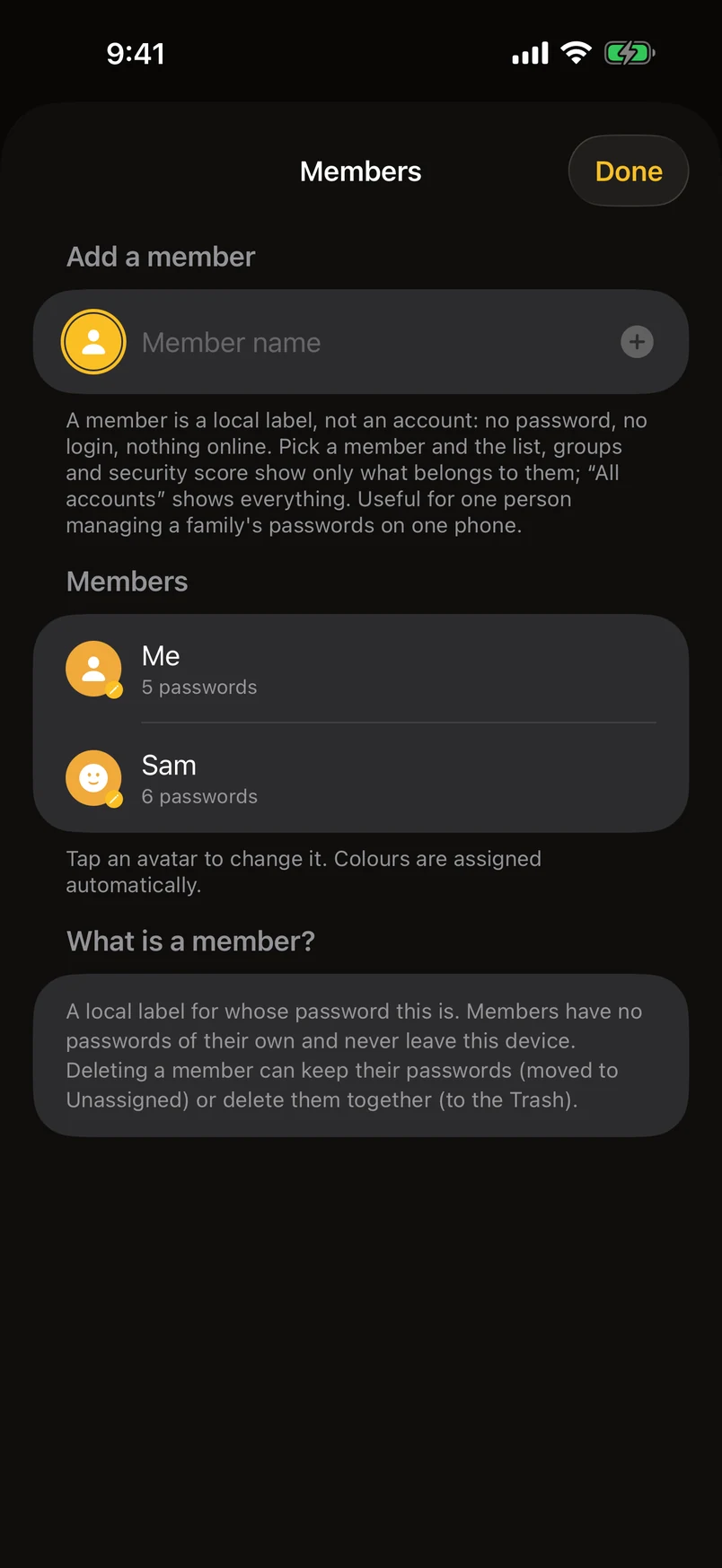
Members
A member is a local label for whose password this is — Me, Sam, Mum. It has no password, no login and corresponds to no online account; it exists so that one person managing a family’s passwords on one device can keep them apart.
Add the first member under Me › Vault › Members and a row of avatars appears above the password list: All accounts, each member, and — if any — Unassigned. Tap one to switch views: the list, groups and security grade show only what belongs to them; “All accounts” shows everything, with a small avatar on each row saying whose it is.
New records go to the member currently selected. To change one, use the Member row in the account’s detail page; to change many, select them in the list and use Assign to member. When you create the first member the app asks whether the existing records belong to them or stay unassigned.
Deleting a member offers two choices: keep the passwords (moved to Unassigned) or delete them together (into the Trash, where they can be restored).
Export this member’s passwords (swipe left in the member list) produces a .8pwd file with only their folders and passwords. When a child gets their own phone, hand it over; imported into their 8PWD it becomes ordinary records. Wi-Fi networks are shared by everyone and are not split by member.
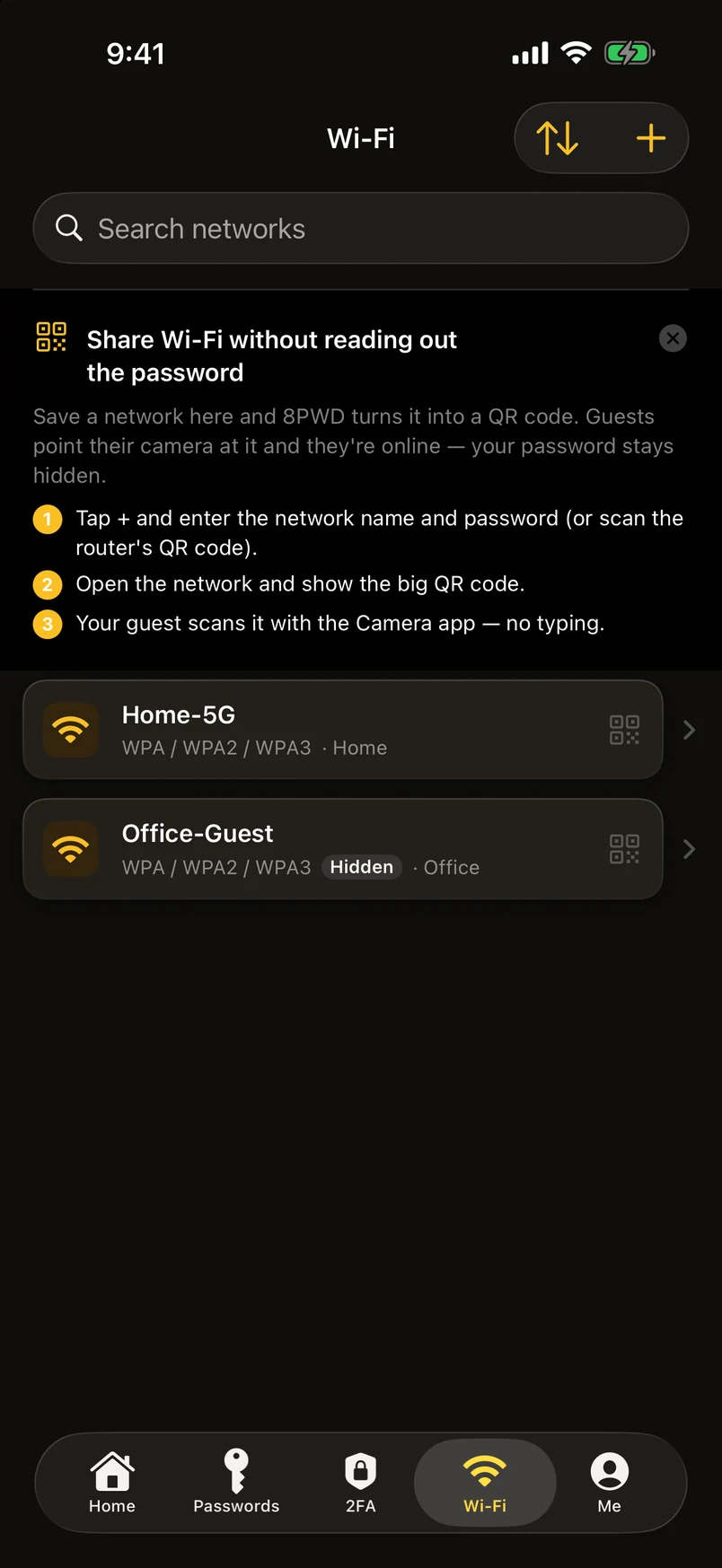
Wi-Fi passwords
Wi-Fi passwords are different: they belong to a place rather than a website, and the most common thing you do with one is let a guest scan it. So they have their own module, on a par with 2FA: Me › Main features › Wi-Fi passwords, and you can drag it onto the tab bar under Me › Bottom tabs. The list mirrors the 2FA tab — one card per network, tap for the QR code.
Each network stores the SSID, security type (WPA / WPA2 / WPA3, WEP or open), password, whether it is hidden, and a note. Tapping one shows a large standard Wi-Fi QR code (WIFI:T:WPA;S:…;P:…;;) that iPhone and Android cameras both understand — the other person scans and joins. You can also share the QR image; that is the same as sharing the password.
The code printed under a router, or shown on someone else’s phone, can be saved directly with Scan or From Photos under the “+” button — you get to check it before it is saved. Apple’s Passwords app shows exactly this kind of code under “Show Network QR Code”; text it shares can be pasted in with Paste shared text.
Whatever you scan goes where it belongs. The “+” on the Passwords, 2FA and Wi-Fi tabs share one recogniser: a 2FA code opens the 2FA editor, a Wi-Fi code opens the Wi-Fi editor, whichever tab you pressed it on.
Wi-Fi passwords are encrypted like every other password and included in .8pwd backups, but they do not count towards the free plan’s limit of 10.
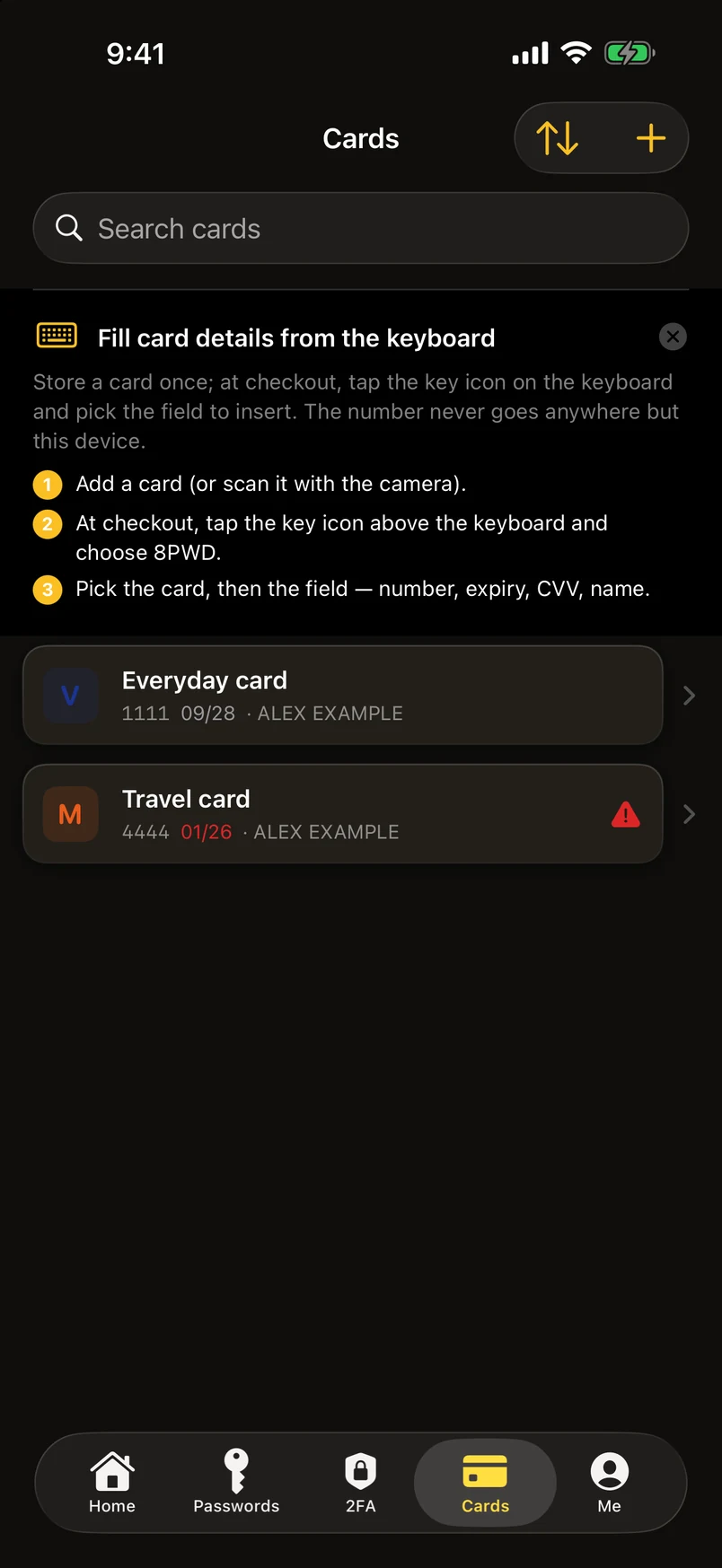
Bank cards
The Cards module stores a card the way the password list stores an account: name, number, cardholder, expiry, security code, PIN, issuer and a note, plus a billing address. Add one by hand or scan it with the camera; the app warns you two months before a card expires. Number, security code and PIN are encrypted like passwords and only ever exist in the vault and in your .8pwd backups. On the free plan, cards, identities and passkeys count towards the ten records together with passwords.
At a checkout form, tap the key icon above the keyboard, choose 8PWD, pick the card and then the field — number, expiry, security code, name — and it is inserted into the field you tapped. One value at a time, from this device, with nothing going anywhere. Filling cards and forms from the keyboard.
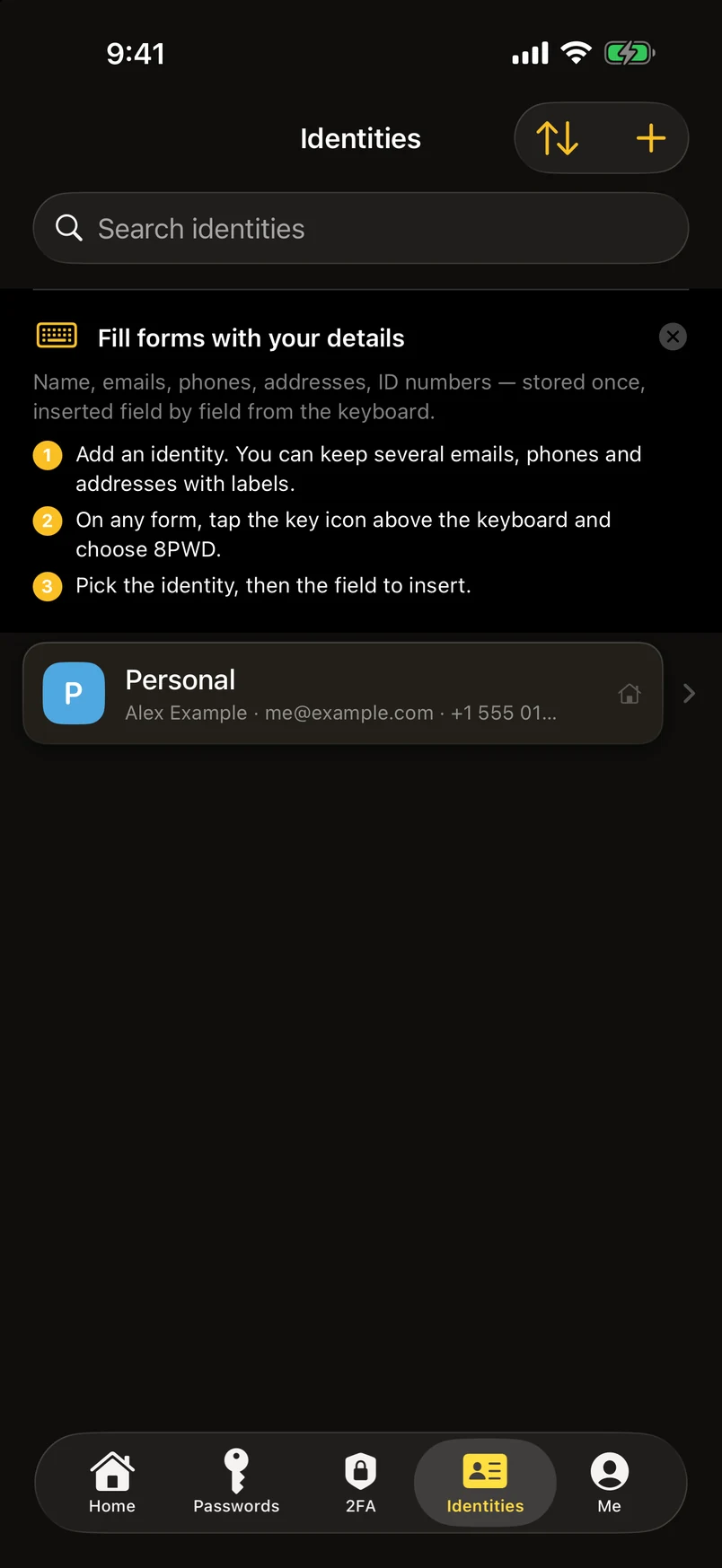
Identities
An identity is your personal details stored once: name, company, birthday, several emails, phones and addresses, each with a label (Work, Home, Old passport…), and documents — passport, ID card, driving licence — with a type, issuing country, issue and expiry dates. Anything expiring within 90 days is flagged. Field names come preset for your country (HKID, My Number, Steuer-ID, CPF…).
On any sign-up or checkout form, tap the key icon above the keyboard, choose 8PWD, pick the identity and the field to insert. Identities are encrypted and backed up like everything else; on the free plan they count towards the ten records, like passwords and cards.
Generating passwords
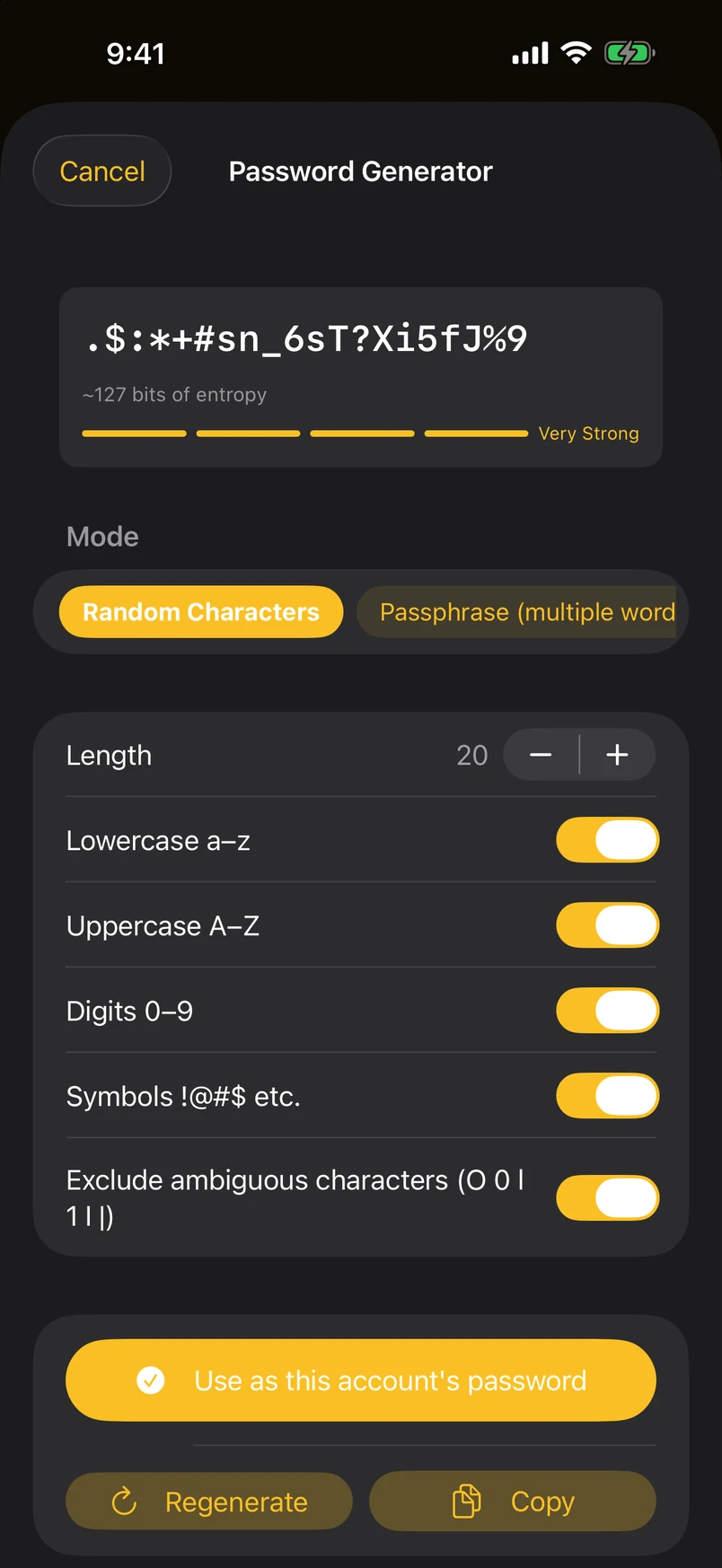
Four styles. Random characters defaults to 20 and runs from 4 to 128, with switches for upper case, lower case, digits and symbols, plus an option to leave out the characters people misread — 0/O, 1/l/I. Passphrase joins words from the EFF long list, four by default and up to ten, with your choice of separator. Memorable alternates consonants and vowels into something pronounceable. PIN is digits only, six by default.
Strength is shown as you adjust. Generated passwords copy with the same 30-second clipboard expiry as everything else, and the session's recent results are kept until you leave the screen — never written to the vault unless you save one.
Bringing passwords in
From Me › Backup & migration › Import, or by sharing a file to 8PWD from any other app (on Mac, drop it onto the window). Supported directly: 8PWD .8pwd backups, Apple Passwords, Chrome, Edge, Brave and Firefox CSV exports, Bitwarden CSV, KeePass 2 XML, 1Password, LastPass, Dashlane, NordPass, Proton Pass and Enpass. Anything else can go through an import template, or you can paste messy text and let the app parse it. Step-by-step guides for each source are on their own page.
Apple Passwords and Chrome can also hand credentials over directly through the system's transfer flow, with nothing written to a file along the way.
Every import shows a preview with counts before it writes anything. Entries identical to ones you already have are skipped, so importing the same file twice does not duplicate your vault — the result screen tells you how many were skipped.
Two merge modes. Append adds without touching what you have. Overwrite replaces entries that share an internal identifier with the versions in the file, and that cannot be undone from the Trash. The app asks before an overwrite; read the sentence.
Backups and exports
This is the part people skip and later regret. Me › Backup & migration › Export produces a .8pwd file you can put anywhere — Files, iCloud Drive, a computer, an email to yourself.
Plain is the default: a file readable by anyone who opens it — which is exactly why it still works when everything else has failed, and exactly why you should think about where you keep it. The app asks you to confirm before producing one. Switch on Encrypt this backup to protect the file with a backup password of your choosing; we have no copy of it. Underneath, a plain export is XML, so your data is never locked inside this app.
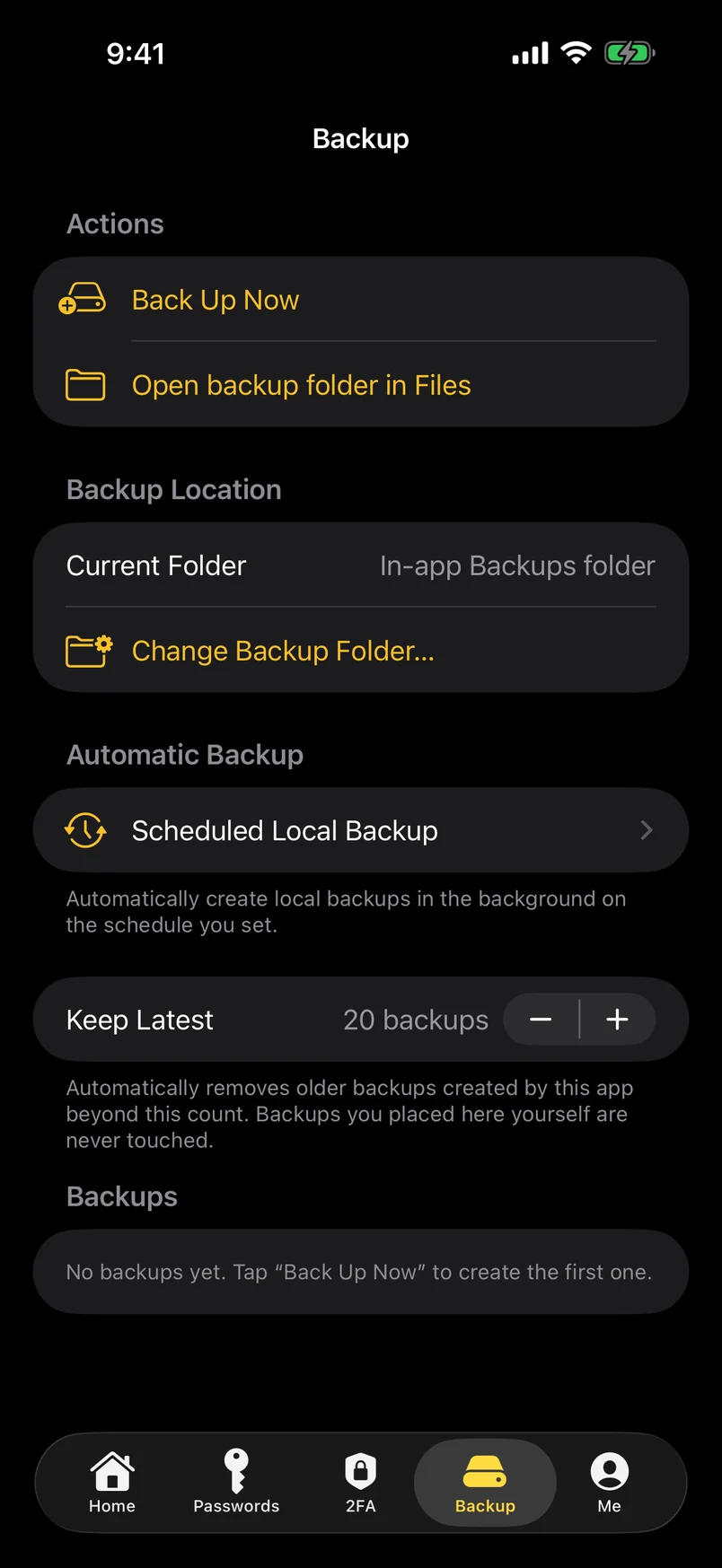
Scheduled local backups keep copies inside the app's own storage daily, weekly, monthly or on an interval you set, with their own backup password and a limit on how many to keep. They survive app updates but not deleting the app, and not a lost device. They are a convenience, not a substitute for a file you keep elsewhere.
A reasonable habit: export an encrypted backup after any large change, keep the last two or three, and once a year actually try importing one. A backup you have never restored is a guess, not a plan. If you want a nudge, Me › Reminders can notify you when nothing has been exported for 30 days — a local notification, computed on device.
Moving to a new device, and forgetting your password
The short way (3.1): Me › Export › Move or merge to another device. Install 8PWD on the other device and open it once; tap Send by AirDrop and pick the device; type the 6-digit code shown on the first device, then review the merge. The whole vault travels as one AES-256 encrypted file, directly between the two devices — no server. The merge wizard has three rules: identical records are skipped, the same account with a different password keeps the newer one (the other goes into password history), and records that exist on one side only are added. Run it again later and only what changed moves.
The long way works too — or to put the same passwords on your iPad or Mac by file: export a backup on the device that has them, carry the file across however you like (AirDrop, Files, iCloud Drive, a USB stick), install 8PWD on the other device, set it up, then import. Nothing syncs afterwards; repeat the export when you have made changes worth carrying. Entries that already exist are skipped, so repeating it only adds what is new. Your data is not in iCloud and does not move on its own, by design — Why no sync explains the trade.
A new device can only open your vault with a master password or the recovery phrase — the key of a fresh install lives in the old device's Keychain and does not travel. If you never set a master password, the backup file is the move: import it on the new device and carry on.
If you forget your master password, choose Forgot it? Use the recovery phrase on the unlock screen, enter the 12 words in order, and set a new master password straight afterwards. Changing the master password does not change the phrase.
If both are gone, the vault cannot be opened — by us, by Apple, or by anyone. What may still help is a backup you exported earlier: a plain .8pwd file opens with no key at all, and an encrypted one needs the backup password you set at export time. Lost both? Restore from a backup on the unlock screen scans the device for them.
The free plan and 8PWD 2026 Pro
The free plan stores up to 10 passwords with every feature intact — AutoFill, two-factor codes, folders, import, export, backups. Folders, tags, two-factor codes and text blocks do not count towards the ten. A small 7 / 10 counter sits above the list while you are on the free plan; tap it to see 8PWD 2026 Pro.
8PWD 2026 Pro removes the limit, three ways. Lifetime is the one we recommend: pay once and never again, nothing to renew, and Family Sharing lets up to six family members use it on their own Apple IDs. Yearly comes with a 7-day free trial and Family Sharing too, and works out well under half the monthly rate. Monthly is there if you want to try for a month; it has no trial and no Family Sharing. Prices are the ones your App Store shows for your region. One purchase covers iPhone, iPad and Mac on the same Apple ID: tap Restore purchases on the other devices. Payment, renewal, invoices and refunds are all handled by Apple; we never see your payment details. Cancel a subscription in Settings › Apple ID › Subscriptions at least 24 hours before the period ends; Lifetime has nothing to cancel.
You meet the Pro page once, after your first real action — the first saved password, import or 2FA code — never before you have seen the app work. It is a single plans page with a Close button, and the free version is a plan card of its own: pick it and the button reads Use the free version for now. Until you buy, each cold start of the app shows a one-page reminder (the plans page, Close in the corner, “See what Pro includes” to read more) — never more than five times a day, never blocking the vault. The page also comes back when it is useful: at the eleventh record, in an import preview that holds more than the free plan can take, and after AutoFill first signs you in. Me › 8PWD 2026 Pro › Pro features at a glance shows the same overview to everyone, subscribers included. The counter above the list turns amber at 8. Reaching the limit never touches what you already have. Imports still run: the first records up to the limit are written, and the preview tells you beforehand how many need Pro. Color schemes and alternative app icons are the only things reserved for Pro besides the limit.
If your subscription ends, nothing is deleted. With more than ten records the vault becomes read-only: viewing, searching, copying and AutoFill keep working exactly as before; adding, importing and restoring wait until you are under the limit again or resubscribe. Subscribing again on the same Apple ID — or tapping Restore purchases on a new device — unlocks it immediately, and the check works offline because StoreKit caches it on the device.
Settings worth knowing
Face ID and Touch ID are off by default: a fresh install opens straight into the vault, protected by your device's own lock. Turn them on under Me › Security for a prompt every time the app opens. With anti-theft encryption on and biometrics off, the master password is asked instead — a perfectly reasonable way to run the app.
Auto-lock decides how long the app may sit in the background before asking again, and applies when biometrics or anti-theft encryption are on. The default is 15 minutes; immediate, 1, 5 and 30 minutes and 1, 2, 4 and 8 hours are the alternatives. If the app keeps asking every time you switch away, this is the setting.
Appearance is the fourth group under Me, in this order: Language, Easy Mode / Standard (iPhone), Text size (a list of sizes with a live preview; the whole app follows — on Mac, text size comes from System Settings › Displays), Theme (light, dark, follow the system), Color scheme (a list of eleven; tap one and the app changes on the spot — Pro; free users can try any of them, it reverts when you leave the page), App icon, and the widget and tab settings. Both Text size and Color scheme have a “Reset to default” row. What's new and the Feature tour no longer pop up by themselves; a small dot on the tile (and on the Help group) says there is something to look at.
Strict key protection requires Face ID or Touch ID to read the cached key and invalidates it if your face or fingerprints change. It has one side effect worth knowing: scheduled backups stop running while it is on, because nothing can authenticate when the system wakes the app in the background.
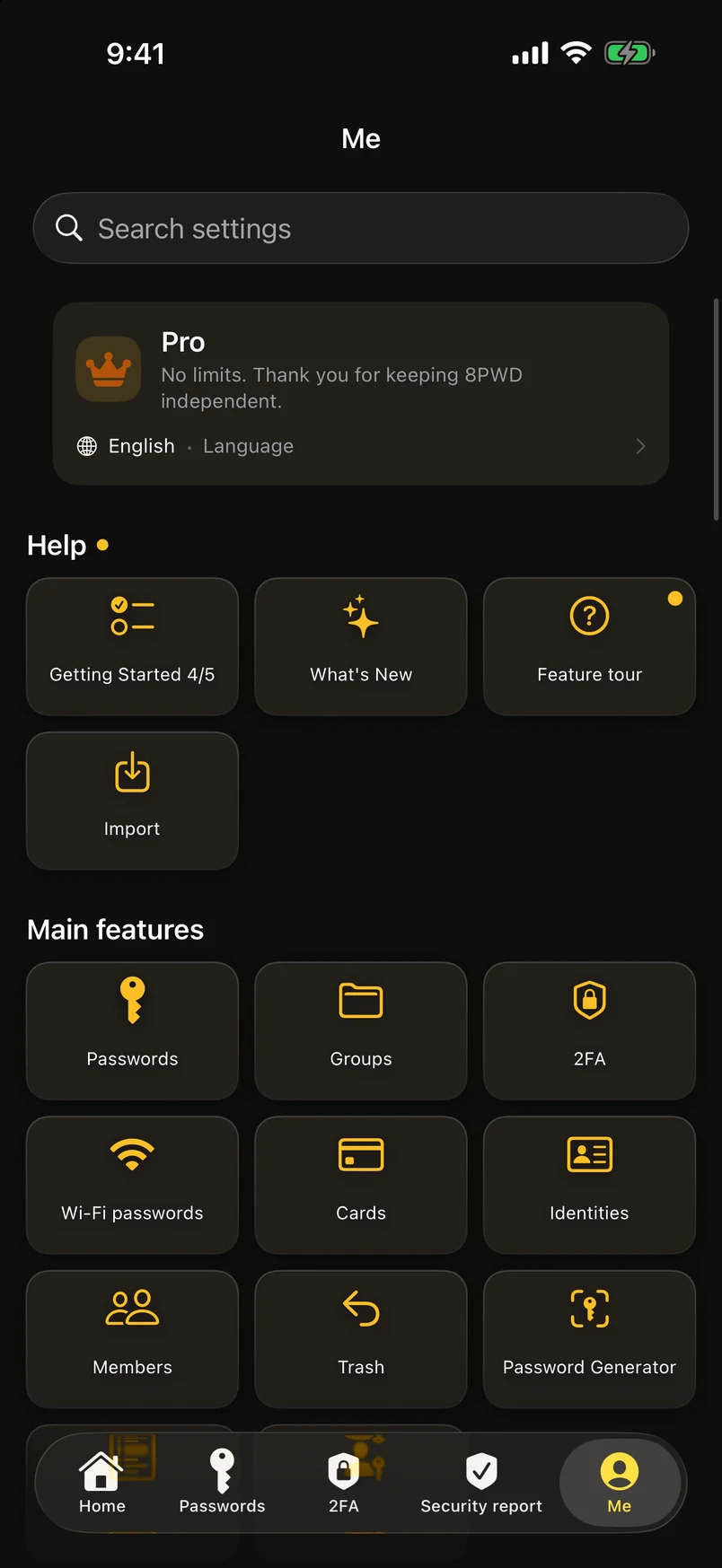
Me is the home of every feature. The last tab (called Settings before 3.1) opens with your plan and the last backup, then six groups: Help (getting started · import · what's new · feature tour), Main features (Passwords · Groups · 2FA · Wi-Fi · Cards · Identities · Passkeys · generator · members · trash · field library), Security & backup (security report · check-up · usage · account deletion guide · lock & biometrics · anti-theft encryption · export · backups · reminders), Appearance (language · Easy Mode / Standard · text size · theme · color scheme · app icon · widget · tabs), 8PWD 2026 Pro, and Why you can trust 8PWD (how to prove it is offline · why no sync · the right to be forgotten · permissions · compliance · privacy · terms · legal · about · rate & share · feedback). Each feature lives in exactly one place here; Home and the tab bar are shortcuts to it. On Mac the same list is also a Settings tab on the ribbon and a Settings menu in the menu bar, each button with a one-line explanation.
Bottom tabs (iPhone): Home first, Me last, and up to three of your own choice in between — pick from the candidate modules and drag to reorder. Remove every other tab and each module is still reachable from Home or under Me › Main features. On iPad and Mac the same modules sit in the sidebar.
The side drawers are gone (3.1). Everything that lived there — members, module shortcuts, the feature tour, notices and terms — is on Home or under Me; the member switcher sits above the password list.
On Mac: the window can hide itself from screen sharing and recordings, the app can start at login and live in the menu bar for quick access, and ⌘N, ⌘F, ⌘, and the usual shortcuts work throughout. App icon (Pro) offers alternative icons on iPhone and iPad, and the default icon adapts to iOS 18's dark and tinted Home Screens.
Also here: Theme and Language as tick lists, Long unchanged — how long a password may go untouched before it counts against you (1 month to 5 years; it drives the grade, the smart group, the reports and the optional local reminder, which never contains a password), Backup reminders that nag by days elapsed or launches counted, and the one and only “Erase all data” — at the bottom of Factory reset (which also shows where the vault file lives). Erasing asks for Face ID only if you turned biometric unlock on; otherwise you type a confirmation word.